Learner Dashboard
You’ll see your Dashboard as soon as you log into your account. If you’re not sure you’re in the right place, hover over the left hand navigation menu, and select “Dashboard” (the ‘home’ button) at the top of the list. Your dashboard should look like the screenshot below.
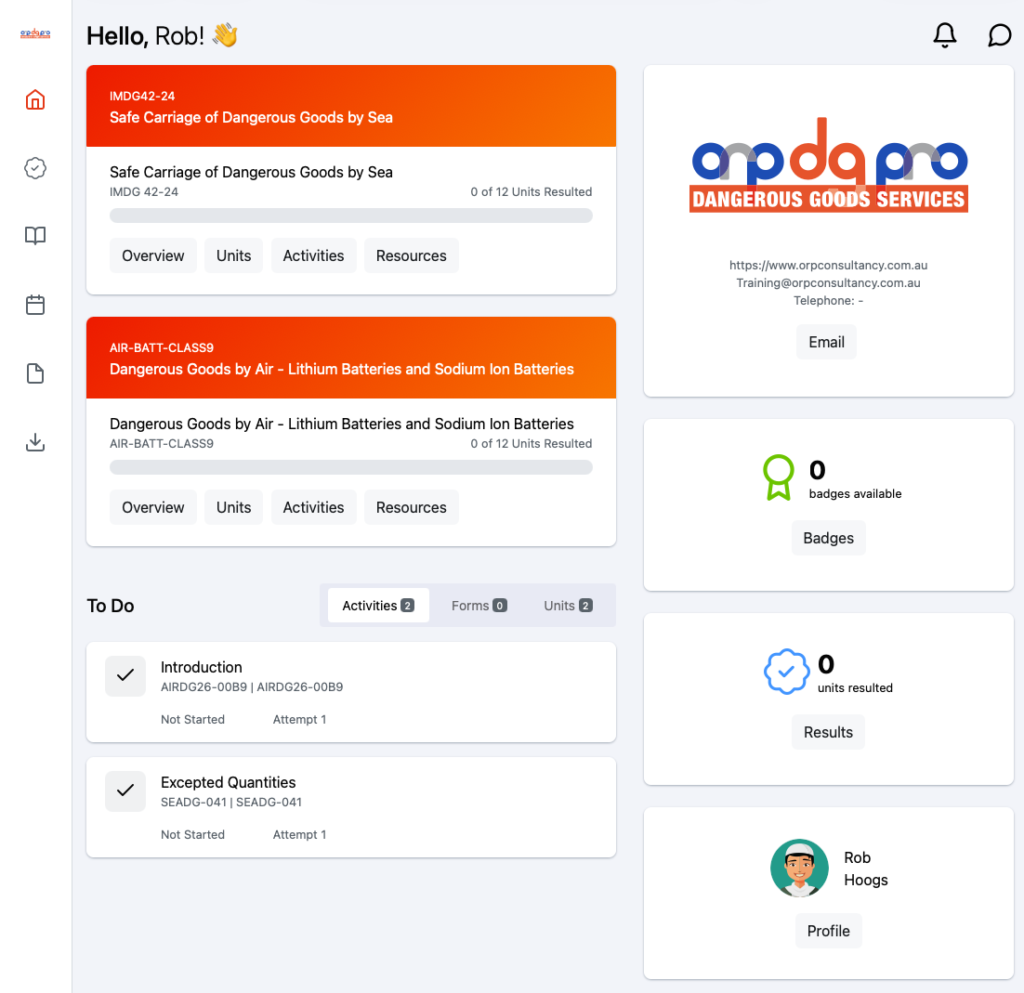
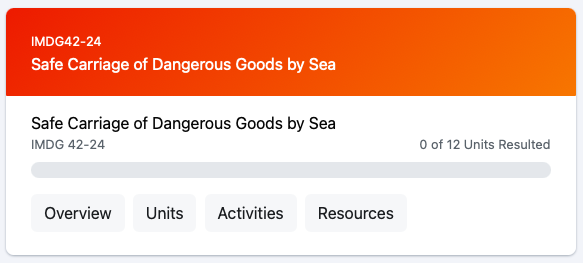
The dashboard tiles show you exactly what needs to get done and how you’re tracking with your course(s). The first tile shows your course(s) overview and progress on it. This tile will show you the number of units in the course. From this tile you can click into the “overview”, “units”, “assessments” and “resources” associated to this course to view them.
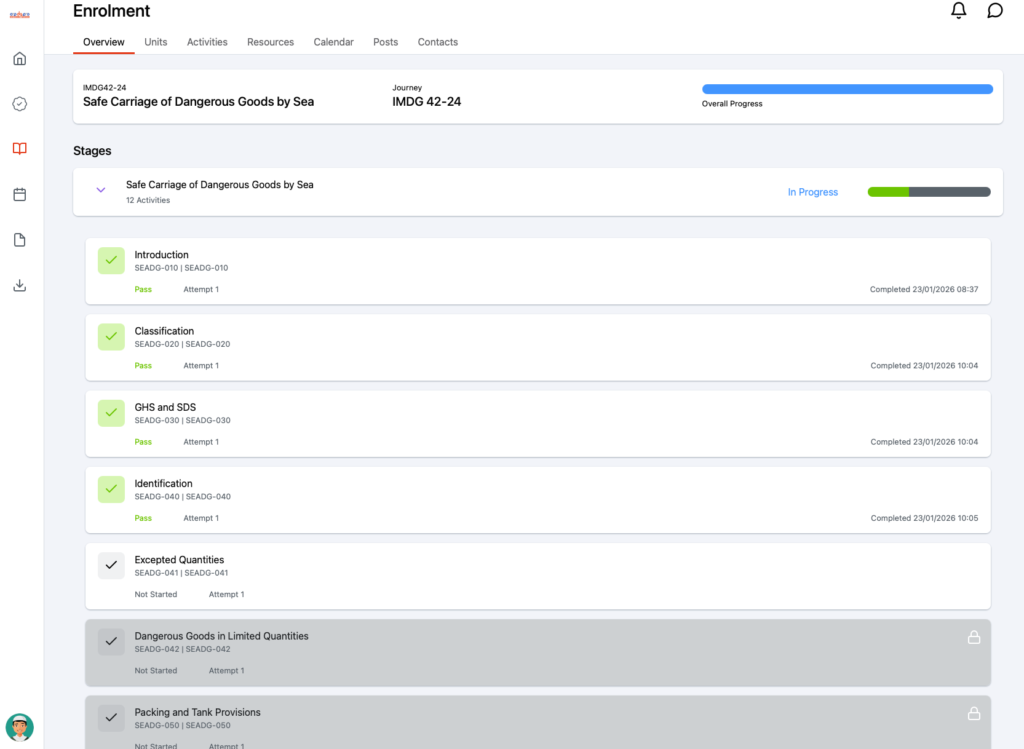
The overview will show the the overall progress for your course, and the stages. The grey-ed out units will be released once previous units have been completed (where applicable).
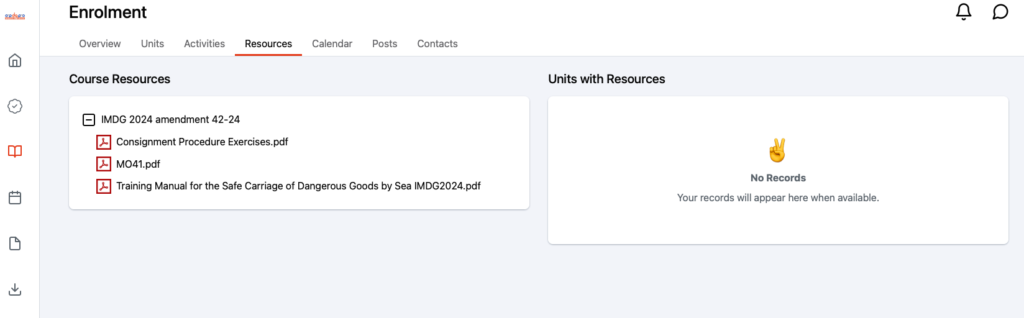
The Resources section contains the materials available for your course. These resources can be downloaded and used by you to assist you with your training course.
The next tiles are showing your “to do” list.
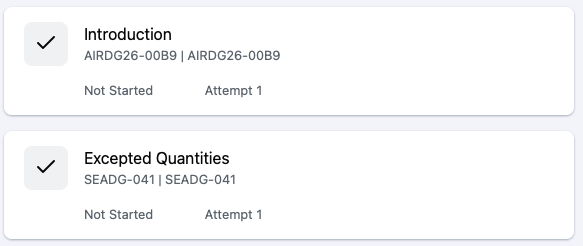
The “to do” list shows your to do “assessments” by default but will also show the number of “forms” and “units” that require to be completed. Note that the ’to-do’ list does not show the training units that haven’t been released to you yet.
Selecting the “tabs” for “forms” and “units” will change the view to show these record types that require to be completed.
The assessments also show any “due dates” that have been applied to the records to let you know that these require to be “submitted” before this time/date. If there are no due dates marked then they have not been allocated by your Assessor.
You also see a “Status” and “attempt” number of each record.
Clicking on any of these tiles in your “to do” list will take you to that Record for you to complete.